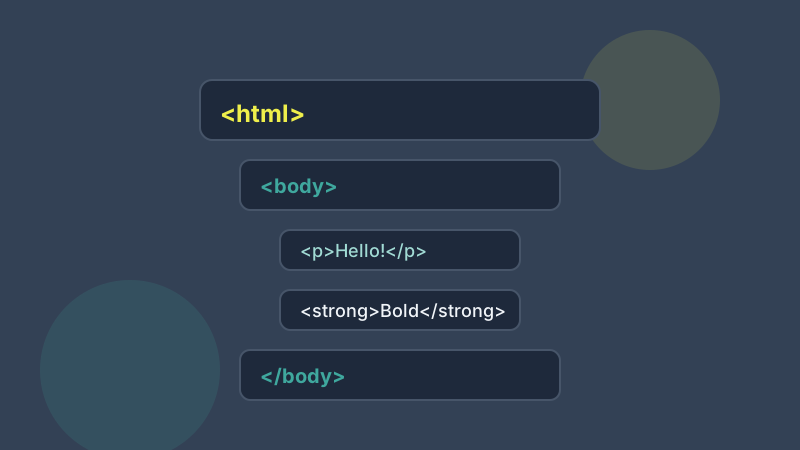
The Problem with Word Markup
Microsoft Word inserts dozens of proprietary tags, inline styles, and unnecessary attributes that bloat your HTML and break responsive designs. Cleaning this markup is essential for any web professional.
Tip 1: Always Use Semantic Tags
Use <strong> instead of <b> and <em> instead of <i>. Semantic tags improve accessibility for screen readers and are better understood by search engines. WordConvertHTML automatically converts these.
Tip 2: Remove Inline Styles
Inline styles make your HTML difficult to maintain and override. Our "Remove Inline Styles" tool strips all style attributes, letting your CSS handle the presentation.
Tip 3: Remove Empty Tags
Word often leaves behind empty paragraph tags (<p></p>) and stray spans. Cleaning these reduces file size and improves page load speed.
Tip 4: Strip Unnecessary Classes
Word-generated classes like "MsoNormal" serve no purpose on your website. Removing them cleans up your HTML and reduces its size by up to 30%.
Tip 5: Remove Comments
Word documents contain XML comments and conditional sections that should never reach your production HTML. Our comment remover handles them all.
Tip 6: Use Real Heading Styles in Word
Before you copy anything, check how the headings were made. Text that was only made bigger and bold converts to a bold paragraph, not a heading. Apply Word's built-in Heading 1, Heading 2 and Heading 3 styles first and they will come through as proper <h1>, <h2> and <h3> tags.
Tip 7: Get Rid of Non-Breaking Spaces
Word likes to insert non-breaking spaces ( ), especially where someone pressed the space bar several times to line things up. On a web page they cause odd gaps and lines that refuse to wrap. The "Remove Extra Whitespace" tool collapses them into normal single spaces.
Tip 8: Unwrap Unnecessary Spans
A single sentence from Word can be split across three or four <span> tags, each repeating the same font settings. Once the inline styles are gone those spans do nothing. "Remove Spans" unwraps them and keeps the text.
Tip 9: Watch Out for Smart Quotes
Word replaces straight quotes with curly ones and types real en and em dashes. They are valid characters, but they turn into garbled symbols if the page is not served as UTF-8. Make sure your page has <meta charset="UTF-8"> in the head, which every modern CMS already does.
Tip 10: Format the Code and Read It Once
Use the format option to indent the HTML, then skim it top to bottom. Thirty seconds of reading catches most leftovers: an empty heading, a list that was split in two, or a link that still points to a file on your computer.
Master the Clean All Button
For the fastest results, use the "Clean All" feature. It applies every cleaning operation automatically, giving you production-ready HTML in seconds.